
 Brian Galvan · July 11, 2026 · 2 min read
Windows has one rule about default apps that no installer is allowed to break: the choice belongs to you. No program can quietly crown itself your PDF viewer, which is genuinely a good rule, even if it means one small chore after installing something new. Here is the whole chore. It takes about thirty seconds.
The two clicks
- Right-click any PDF on your desktop or in a folder, and hover over Open with.
- Click Choose another app, select No Bloat PDF from the list, and press Always.
That is it. You will see No Bloat PDF sitting right in the menu, usually a few lines below the software it is about to replace:
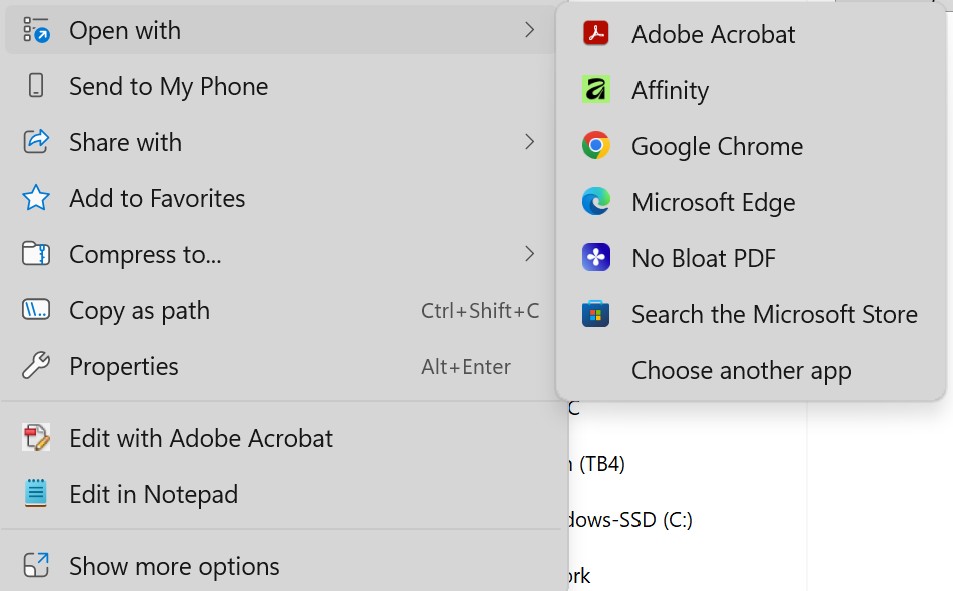
From this moment, every PDF on your machine opens with a double-click, instantly, in a viewer with no splash screen and no opinions about what you should buy next.
How you can tell it worked
Look at any PDF file after the switch. Its icon changes to the No Bloat document mark, so you always know at a glance that the file will open fast:
If your desktop icons have not refreshed yet, press F5 on the desktop. Windows caches file icons and sometimes needs the nudge.
The settings route, if you prefer menus
Same result, different door: open Settings, go to Apps, then Default apps, search for No Bloat PDF, and assign it the .pdf file type.
Changing your mind takes the same two clicks
This is worth saying out loud, because the big vendors have trained everyone to expect switching costs. There is no lock-in here. The same right-click menu will hand your PDFs to any other program the moment you ask. Software should earn its place on your machine every single day, mine included.
Have not installed it yet? The whole thing is a 4.5 megabyte download, free forever, on the download page.
Lifelong developer & Martech provider. Director of Growth & Innovation at Barnes Walker · CTO & Co-founder at Virtual Hangar · Owner of YourLegal.app.